
Settings
Finding Settings
Settings is one of the four main tabs in the bottom navigation bar. Tap Settings in the tab bar to open it. You can also reach it from the Menu popup by tapping Settings.
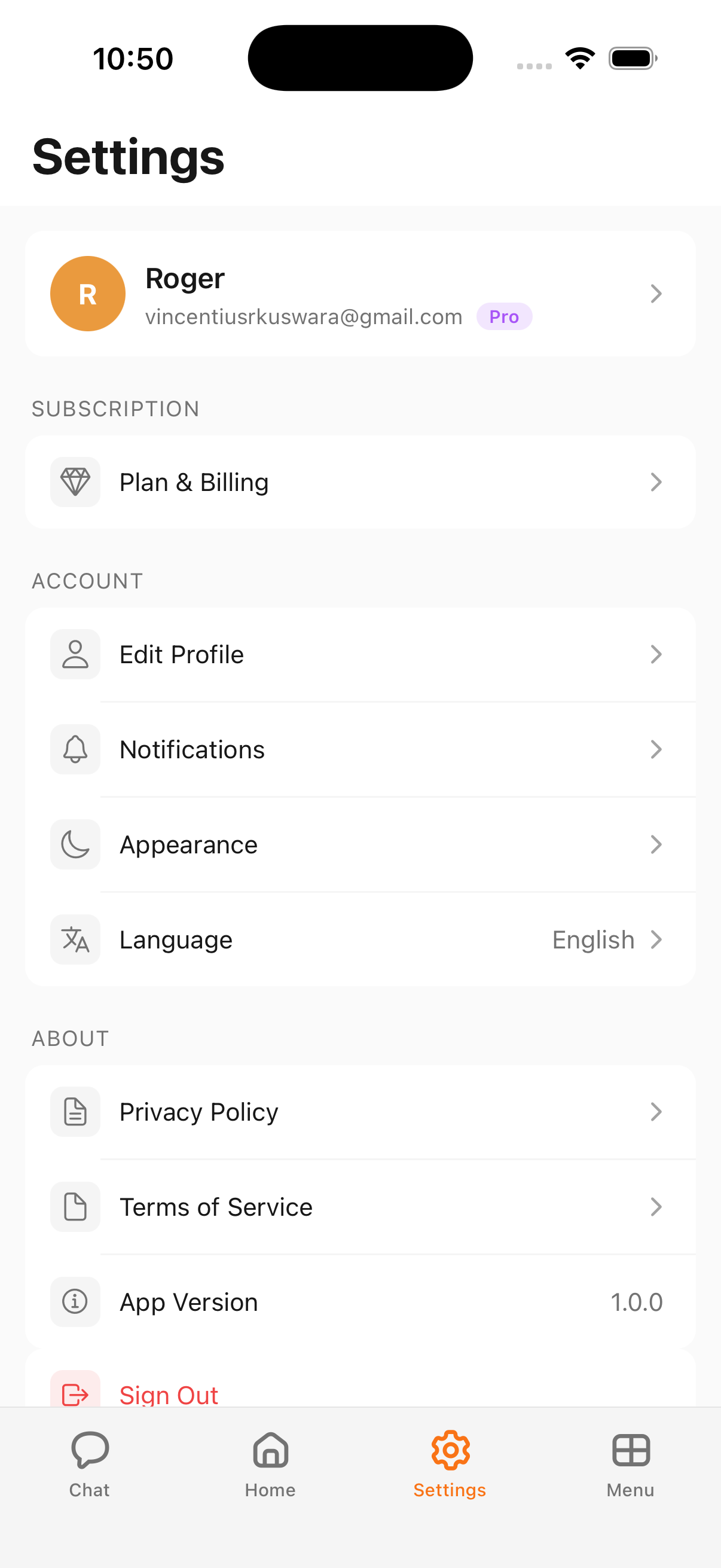
Profile Card
At the top of Settings, you'll see your profile card. It displays your avatar, display name, email address, and your current plan badge (e.g. Pro). This gives you a quick glance at your account identity.
Subscription
The Subscription section contains one item:
- Plan & Billing — Tap to view your current plan, compare tiers, or manage your subscription. See Plans and Billing for details.
Account
The Account section groups your personal preferences:
- Edit Profile — Update your display name, avatar, and other profile details.
- Notifications — Configure which push notifications you receive (reminders, briefings, action confirmations).
- Appearance — Switch between light mode, dark mode, or follow your system setting.
- Language — Choose your preferred app language. The current selection (e.g. "English") is shown inline.
About
The About section provides app information and legal links:
- Privacy Policy — Opens Cloa's privacy policy.
- Terms of Service — Opens Cloa's terms of service.
- App Version — Displays the current installed version (e.g. "1.0.0"). This is useful when reporting issues or checking for updates.
Sign Out
At the bottom of the Settings screen, the Sign Out button logs you out of your Cloa account. After signing out, you'll be returned to the login screen. Your data remains safely stored and will be available when you sign back in.
What's Next
- Compare plans and upgrade in Plans and Billing
- Learn how your data is handled in Privacy and Your Data
- Set up integrations in Connect Your Apps