
Automations
What Are Automations?
Automations let you hand off recurring tasks, reminders, and check-ins to Cloa. Describe what you need in plain English and Cloa will create the automation, run it on schedule, and notify you when it's done — no setup wizards, no cron syntax.
Creating an Automation
Open any chat with Cloa and describe what you want. Cloa figures out the timing, the type, and the steps involved.
"Remind me tomorrow at 9 AM to do my laundry"
"Every Monday morning, send a summary of my week to Slack"
"Check my Gmail every hour and notify me if my manager emails"
"On the first of each month, pull my Notion task list and message me a status update"
Cloa confirms the details before activating, so you can adjust the schedule or wording before it goes live.
Types of Automations
Automations come in two flavors, visible as filter tabs on the Automations screen:
Jobs
A Job is a one-time or one-off scheduled task. It runs once at a specific time, then completes.
- "Remind me at 3 PM today to call the dentist"
- "Tomorrow morning, draft a birthday message for Sarah"
Schedules
A Schedule is a recurring automation that runs on a cron-like interval — daily, weekly, monthly, or a custom cadence.
- "Every weekday at 8 AM, give me a briefing of my calendar"
- "Every Friday at 5 PM, summarize my unread emails"
You can see which type each automation is from the Automations screen filters: All, Jobs, or Schedules.
Managing Automations
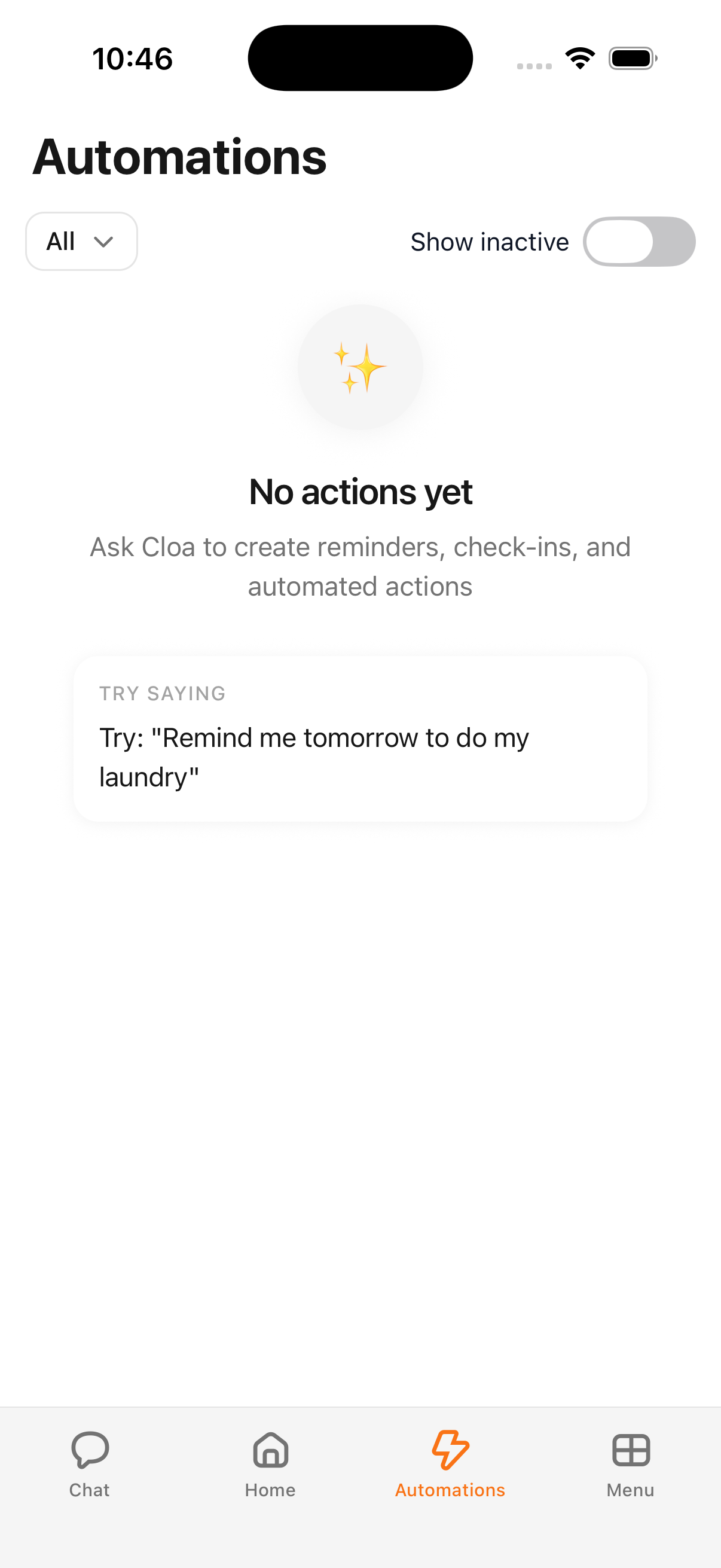
Navigate to the Automations screen from Menu > Automations (or via the bottom tab bar).
From the Automations screen you can:
- Filter by type using the dropdown (All, Jobs, Schedules)
- Toggle "Show inactive" to reveal paused or completed automations
- Tap an automation to view its details, edit its schedule, or change its steps
- Pause or resume an automation without deleting it
- Delete an automation you no longer need
You can also manage automations through chat:
"Show me my automations"
"Pause the Monday briefing schedule"
"Delete the laundry reminder"
Multi-Step Workflows
Automations are not limited to a single action. You can chain multiple integrations into a single workflow:
- Read — Pull data from an integration (check Google Calendar, read Gmail)
- Process — Summarize, filter, or format the information
- Act — Send a message on Slack, create a Notion page, notify you in-app
Example: "Every Monday at 9 AM, check my Google Calendar for the week, summarize any conflicts, draft an email about them, and send it to my team on Slack."
Cloa breaks this down into steps and executes them in sequence each time the automation runs.
Example Automations
| What you say | Type | What happens |
|---|---|---|
| "Remind me tomorrow to do my laundry" | Job | One-time reminder delivered tomorrow |
| "Every weekday at 8 AM, brief me on my calendar" | Schedule | Daily calendar summary in chat |
| "Every Friday, summarize my unread emails and post to Slack" | Schedule | Weekly email digest sent to Slack |
| "In 2 hours, check if the deployment succeeded" | Job | One-time check with a notification |
| "On the 1st of each month, pull my Notion tasks and message me" | Schedule | Monthly task status update |
Confirmation Mode
For automations that involve sensitive actions (like sending emails or posting messages), Cloa can show you a preview before executing. You approve or reject with a single tap.
Control this behavior per integration in Settings > Integrations > Permission Levels.
What's Next
- Control what automations can do automatically in Understanding Permissions
- Connect more apps to unlock new workflows in Connect Your Apps
- Having trouble? Check Common Issues