
Integrations
Outlook
What Cloa Can Do with Outlook
| Action | Description |
|---|---|
| Read calendar | See your upcoming events and meetings |
| Create events | Schedule new meetings |
| Read emails | Access your Outlook inbox |
| Send emails | Draft and send emails on your behalf |
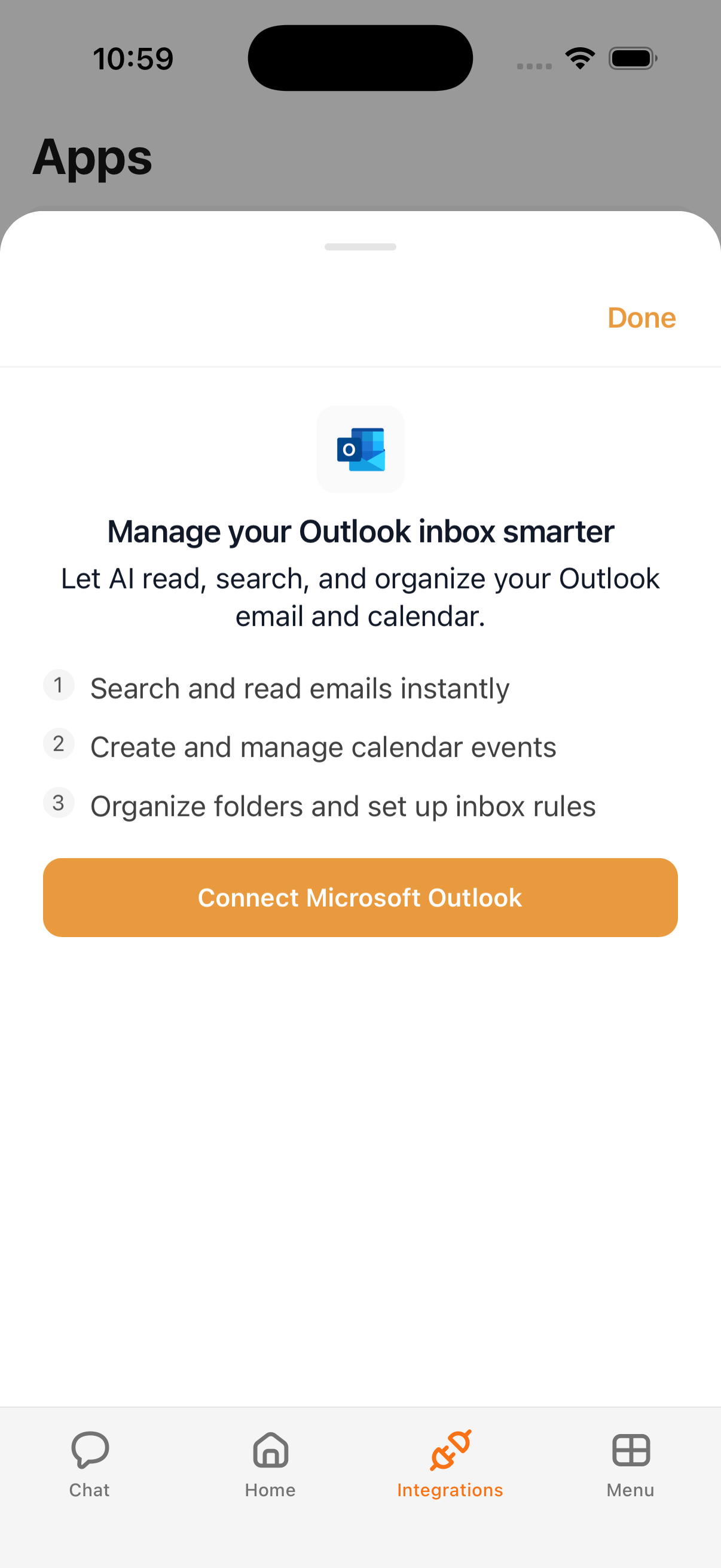
How to Connect
- Open the Cloa app
- Tap Menu → Integrations → Outlook
- Tap Connect, then sign in with your Microsoft account
- Grant the requested permissions
Example Prompts
Once connected, try:
"What meetings do I have today in Outlook?"
"Summarize my unread Outlook emails"
"Schedule a 30-minute meeting on Wednesday"
Tips
- Outlook calendar events appear in your morning briefing alongside Google Calendar events
- You can connect both Google and Microsoft accounts — Cloa manages both
- Use Automations for automated email workflows
Troubleshooting
If Outlook isn't syncing, your Microsoft account may need re-authorization. Go to Menu → Integrations → Outlook and reconnect. See Integration Issues for more help.
What's Next
- Control permissions in Understanding Permissions
- Collaborate with your team using Lark