
Integrations
Google Calendar
What Cloa Can Do with Google Calendar
| Action | Description |
|---|---|
| Read events | See your upcoming meetings and events |
| Create events | Schedule new meetings on your behalf |
| Detect conflicts | Warn you about overlapping events |
| Send invites | Add attendees to new events |
How to Connect
- Open the Cloa app
- Tap Menu → Integrations → Google Calendar
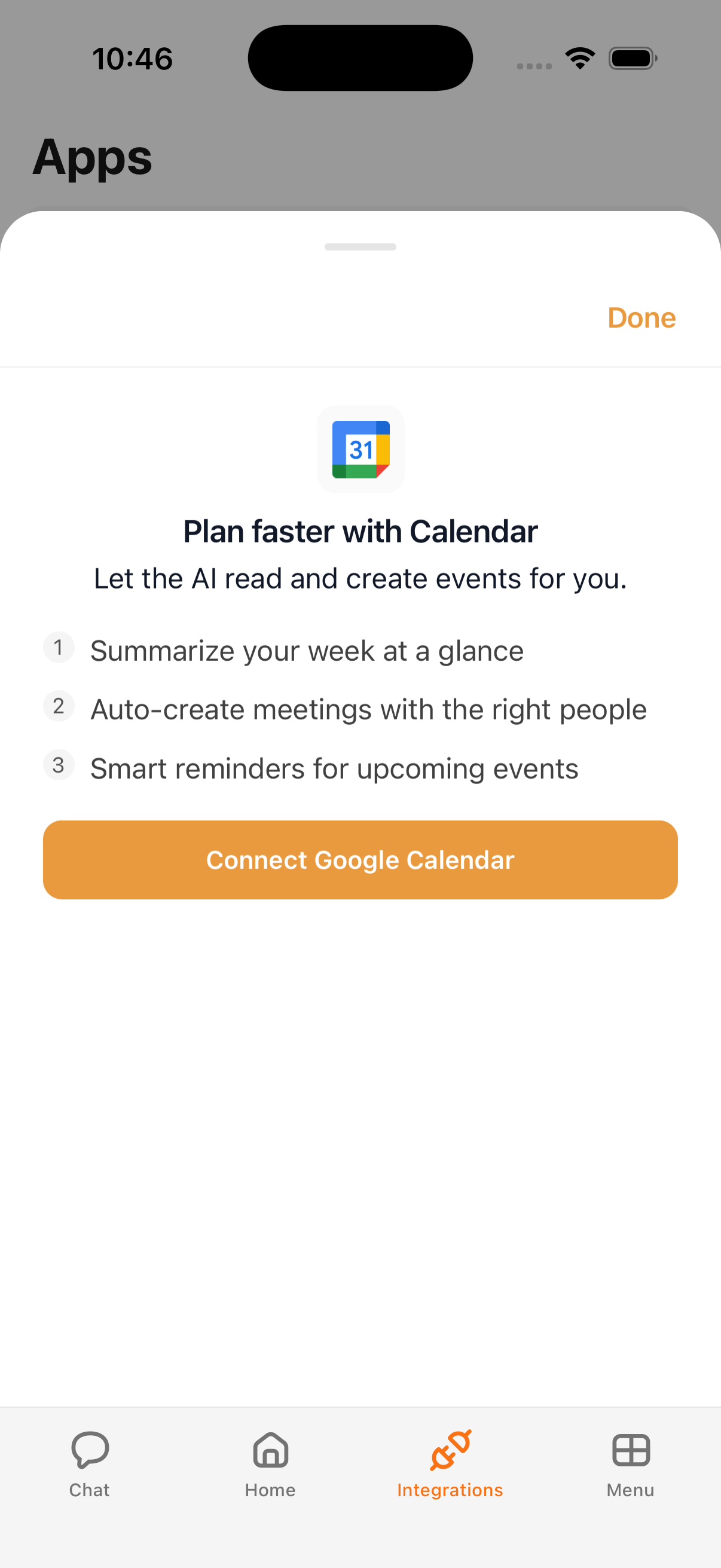
- Review the "Plan faster" bottom sheet highlighting key features
- Tap Connect, then sign in with your Google account
- Grant the requested permissions
Example Prompts
Once connected, try:
"What's on my calendar today?"
"Schedule a meeting with Sarah on Thursday at 2pm"
"Do I have any conflicts this week?"
"Move my 3pm meeting to 4pm"
Tips
- Google Calendar powers your morning briefing with schedule information
- Cloa can detect conflicts across your entire week — not just today
- Use Automations to automate weekly calendar summaries
Troubleshooting
If your calendar isn't syncing, try disconnecting and reconnecting in Menu → Integrations. See Integration Issues for more help.
What's Next
- Control what Cloa can do in Understanding Permissions
- Add email access with Gmail