
Integrations
Gmail
What Cloa Can Do with Gmail
| Action | Description |
|---|---|
| Read emails | See your inbox and individual messages |
| Search | Find specific emails by sender, subject, or content |
| Draft emails | Write email drafts for your review |
| Send emails | Send emails on your behalf (with permission) |
| Label emails | Organize emails into labels |
How to Connect
- Open the Cloa app
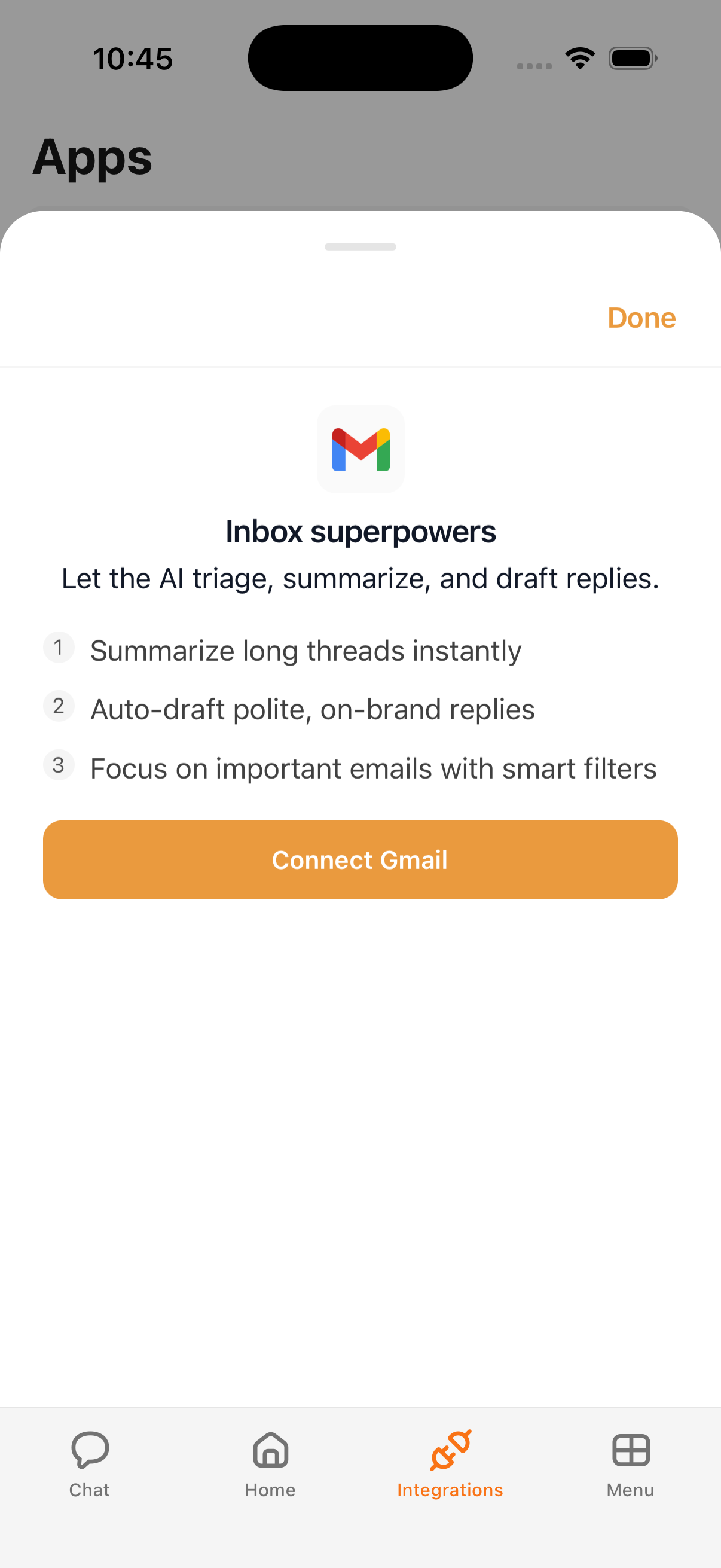
- Tap Menu → Integrations → Gmail
- Review the "Inbox superpowers" bottom sheet highlighting key features
- Tap Connect, then sign in with your Google account
- Grant the requested permissions
Example Prompts
Once connected, try:
"Do I have any unread emails?"
"Summarize the email from Sarah about the project"
"Draft a reply to the latest email from my manager"
"Search my emails for the invoice from last month"
Tips
- Set Gmail to Confirm mode if you want to review outgoing emails before they're sent
- Gmail data feeds into your morning briefing for daily email summaries
- Combine Gmail with calendar data in Automations for powerful workflows
Troubleshooting
If emails aren't loading, your connection may need re-authorization. Go to Menu → Integrations → Gmail and reconnect. See Integration Issues for more help.
What's Next
- Control email permissions in Understanding Permissions
- Organize your knowledge with Notion