
Daily Briefing
What Is the Daily Briefing?
The Daily Briefing is your personal morning summary, delivered right on the Home tab. Instead of opening five apps to figure out your day, Cloa gathers everything overnight and presents it as a single, conversational overview when you wake up.
Think of it as Cloa reading your schedule, emails, and notes, then telling you what matters — like a personal assistant catching you up over coffee.
How It Works
- Overnight sync — While you sleep, Cloa checks your connected integrations (Gmail, Google Calendar, Notion, and others) for new activity.
- Summary generation — Cloa compiles everything into a conversational briefing tailored to your day.
- Ready when you are — Open the Home tab (the house icon in the bottom bar) and your briefing is already waiting.
The briefing refreshes each day. When new data comes in from your integrations, the next morning's briefing reflects it automatically.
What You See
When you open the Home tab, the briefing is laid out as a scrollable, conversational flow:
Greeting and Time Pill
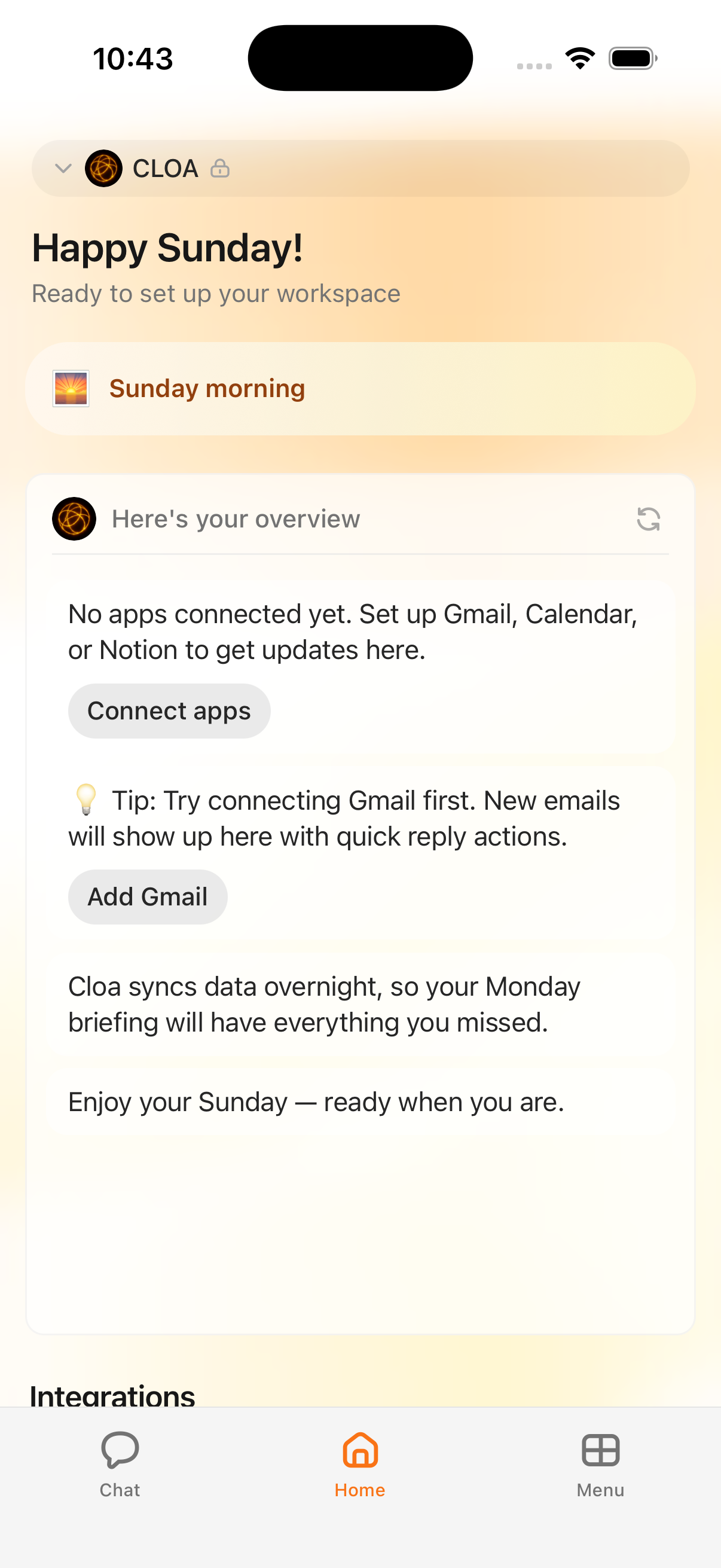
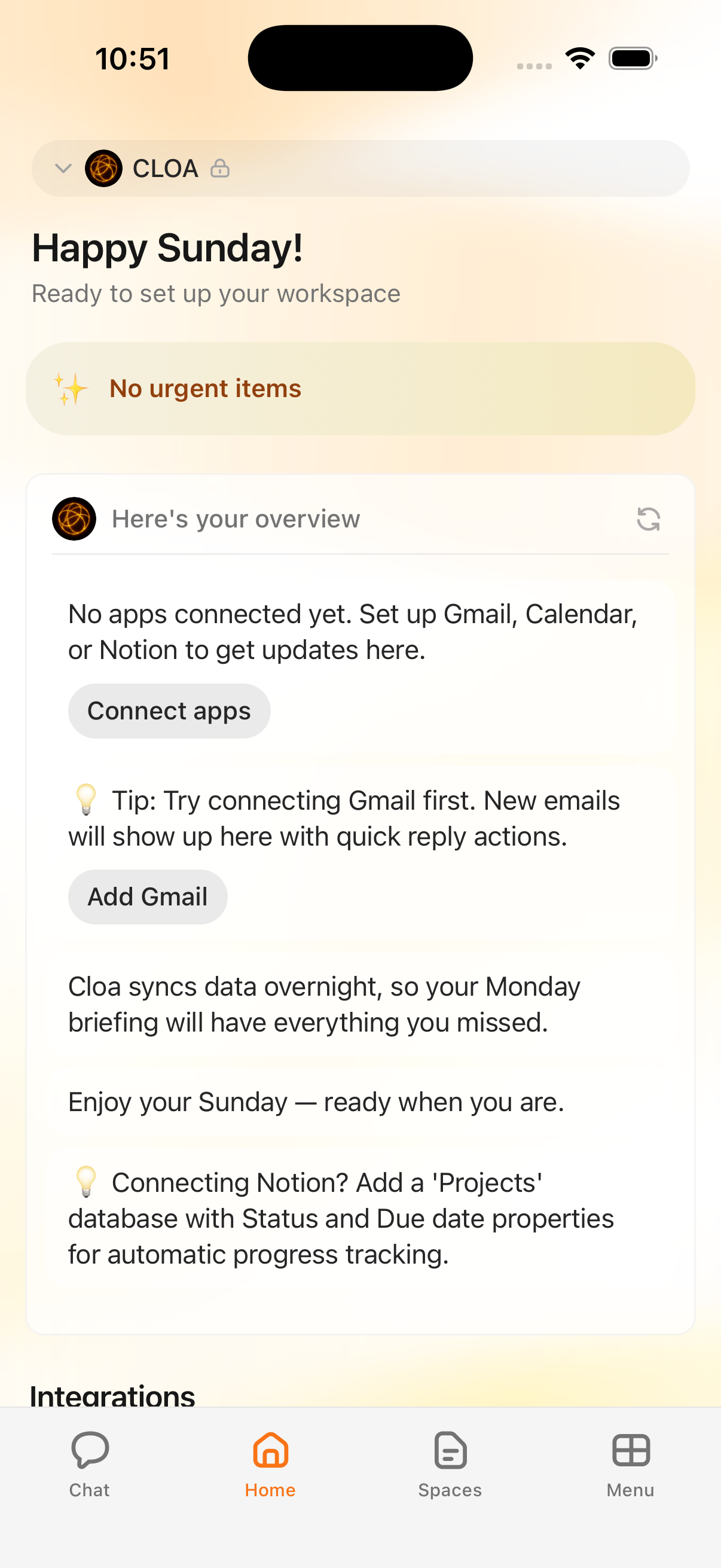
At the top, Cloa greets you with a dynamic, time-aware message like "Happy Sunday!" with a subtitle such as "Ready to set up your workspace." Just below the greeting, an orange time-of-day pill shows something like "Sunday morning" to anchor you in the moment.
Overview Card
A conversational bubble from Cloa's avatar introduces the briefing with "Here's your overview" and summarizes the key points of your day — upcoming events, unread emails, pending tasks, or anything else from your connected apps.
Integration Updates
When you have integrations connected, the briefing includes specific sections:
- Calendar — Today's events, meeting times, and scheduling conflicts
- Email — Unread count, important messages, and quick-reply action buttons
- Notion — Recent page updates and task changes
- Proactive insights — Suggestions and observations based on your context, like a birthday reminder or a heads-up about a double-booked afternoon
Each section appears as its own chat bubble, so you can scan quickly and act on what matters.
When No Apps Are Connected
If you haven't linked any integrations yet, the briefing tells you:
"No apps connected yet. Set up Gmail, Calendar, or Notion to get updates here."
A Connect apps button takes you directly to integration setup. You'll also see helpful tips like:
"Tip: Try connecting Gmail first. New emails will show up here with quick reply actions."
Closing Message
At the bottom, Cloa wraps up with context about what's coming next — for example, "Cloa syncs data overnight, so your Monday briefing will have everything you missed." followed by a friendly sign-off like "Enjoy your Sunday — ready when you are."
Integrations Grid
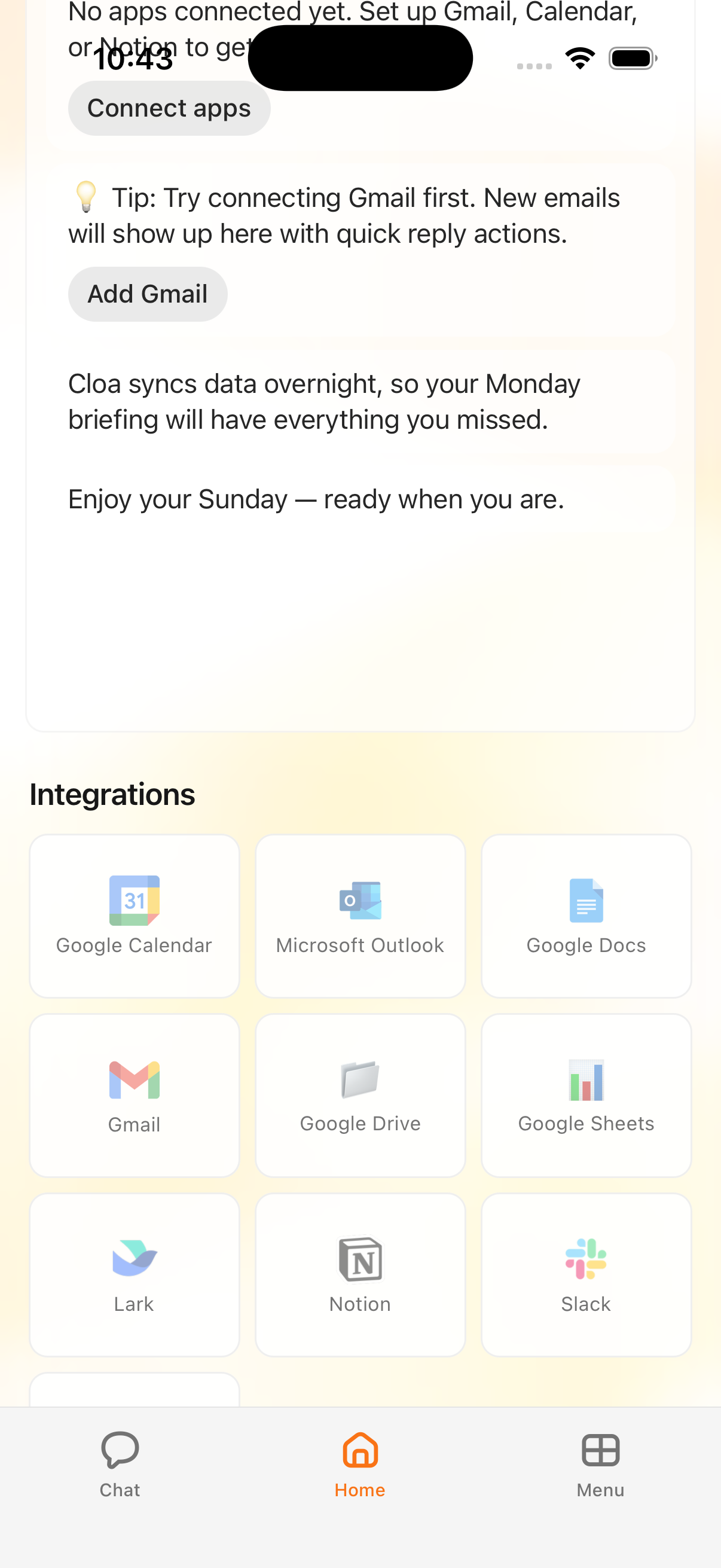
Below the briefing conversation, an integrations grid shows tiles for each connected app, giving you a quick visual status of what's feeding into your briefings.
Customizing Your Briefing
The simplest way to get a richer briefing is to connect more apps. Each new integration adds a new layer of information:
| Integration | What It Adds to Your Briefing |
|---|---|
| Google Calendar | Today's events, meeting conflicts, free time blocks |
| Gmail | Unread count, important email summaries, quick-reply actions |
| Notion | Recent page edits, task updates, new comments |
| Outlook | Calendar events and email summaries from your work account |
| Slack | Unread channel highlights and direct messages |
The more Cloa knows about your day, the more useful the briefing becomes. You can manage which integrations are active at any time from the settings.
What's Next
- Connect your first integration in Connect Your Apps
- Browse all available integrations in Integrations
- Learn how Cloa remembers context across briefings in How Cloa Remembers