
Download and Setup
Download the App
Cloa is available for free on both iOS and Android.
- iOS: Download from the App Store
- Android: Download from Google Play
Create Your Account
- Open the Cloa app after installation
- Tap Get Started
- Sign up with your email, or continue with Google or Apple
- Choose a display name — this is how Cloa will address you in conversations
That's it. No verification codes, no waitlists. You're in.
Your First Look
After signing in, you land on the Home tab. Here's what you'll find across the four tabs at the bottom of the screen.
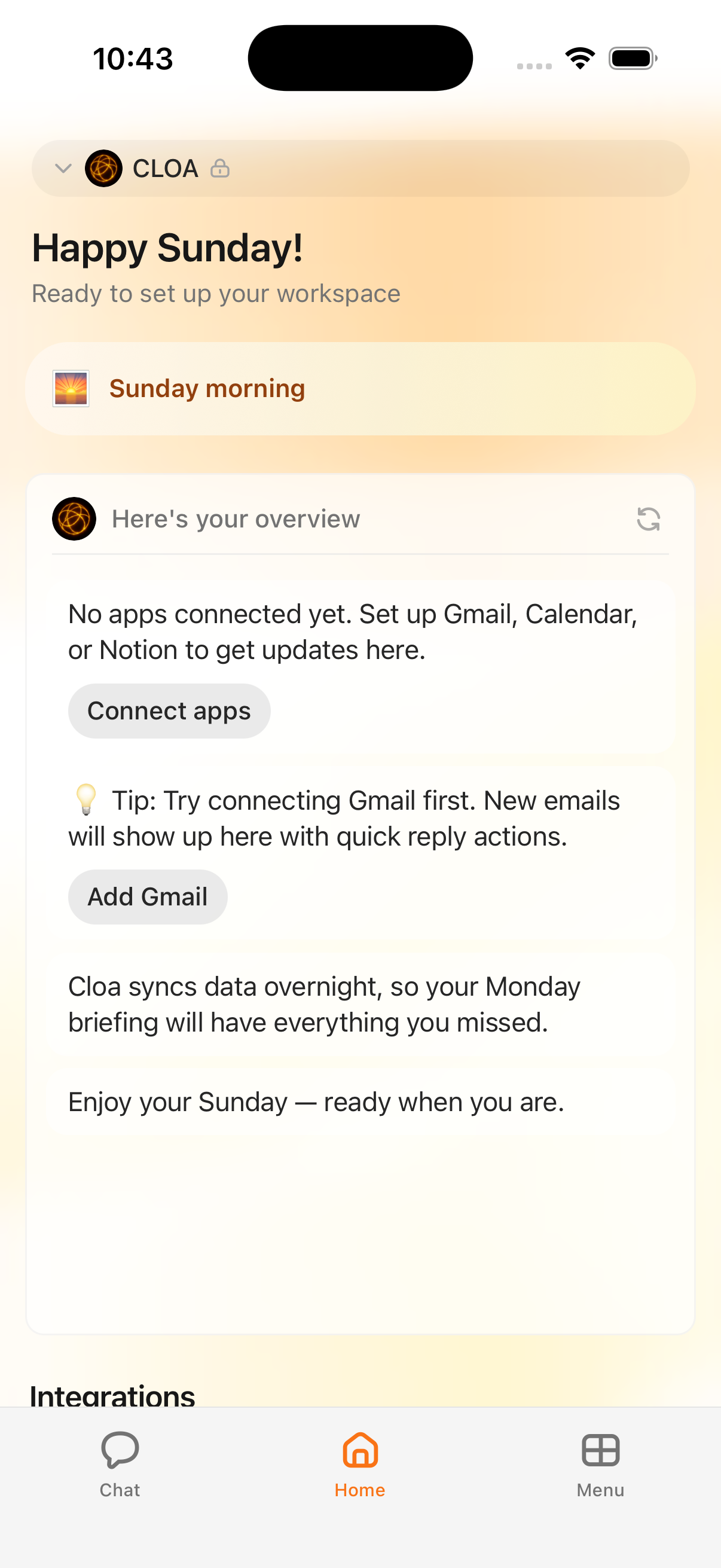
Home
Your personal dashboard. Cloa greets you based on the time of day and shows an overview card with helpful context — upcoming events, reminders, and proactive suggestions. The first time you open it, you'll see a prompt to connect your apps so Cloa can start pulling in real data.
Chat
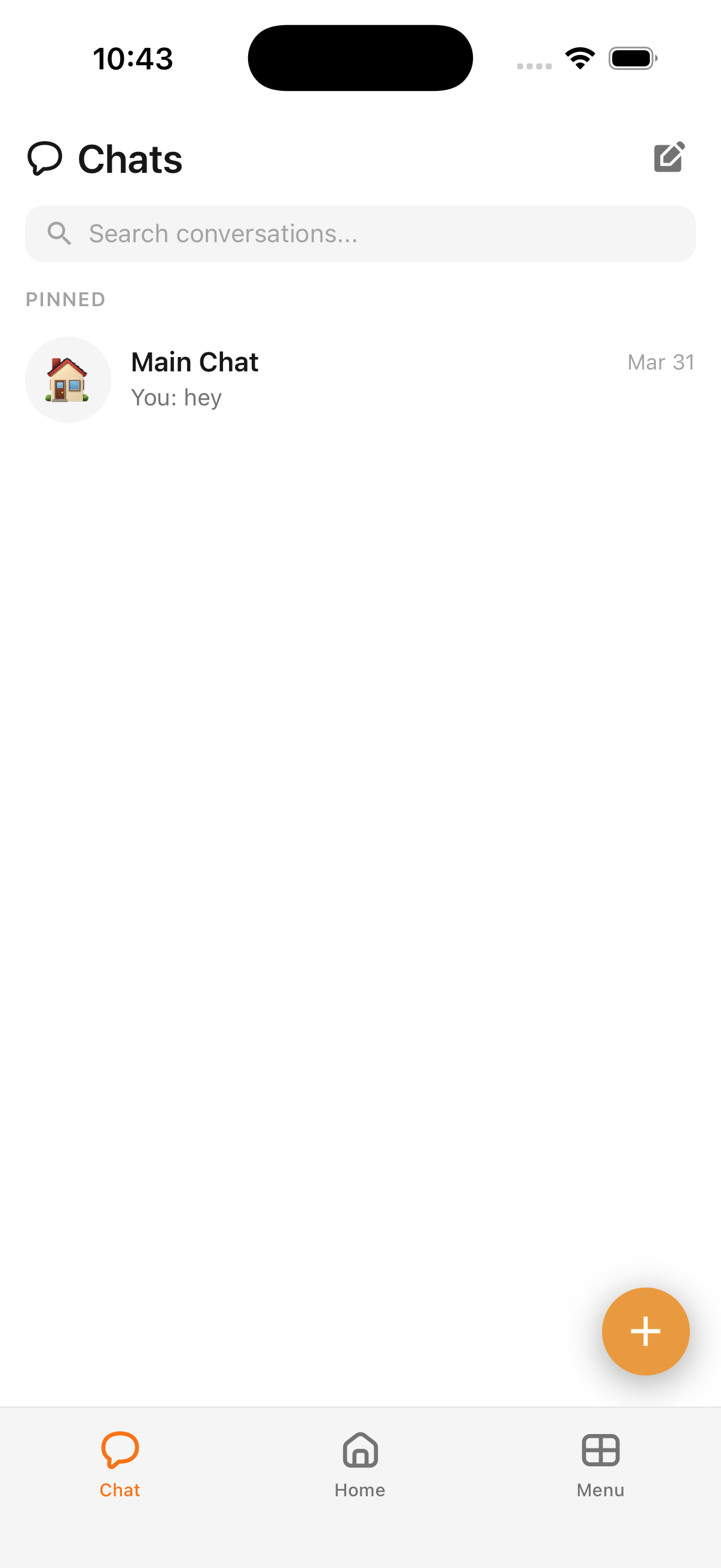
Your conversation hub. You'll see a pinned Main Chat thread at the top and any other threads you've created below it. Use the search bar to find past conversations, or tap the compose button to start a new one.
Settings
Manage your profile, subscription plan, and account preferences. This is also where you'll find notification controls and the About section.
Menu
Tap the grid icon to open a popup with quick access to everything else:
- Companion — AI companions with unique personalities
- Files — your personal file storage in Cloa
- Spaces — connected workspace views (Notion, etc.)
- Integrations — connect Gmail, Calendar, Slack, and more
- Automations — reminders, routines, and scheduled workflows
- Settings — another way to reach your account settings
What's Next
You're all set up. Here's where to go from here:
- Start talking to Cloa — head to Your First Conversation to learn what Cloa can do
- Connect your apps — visit Connect Your Apps to link Gmail, Calendar, Notion, and more