
Integrations
Understanding Permissions
You're Always in Control
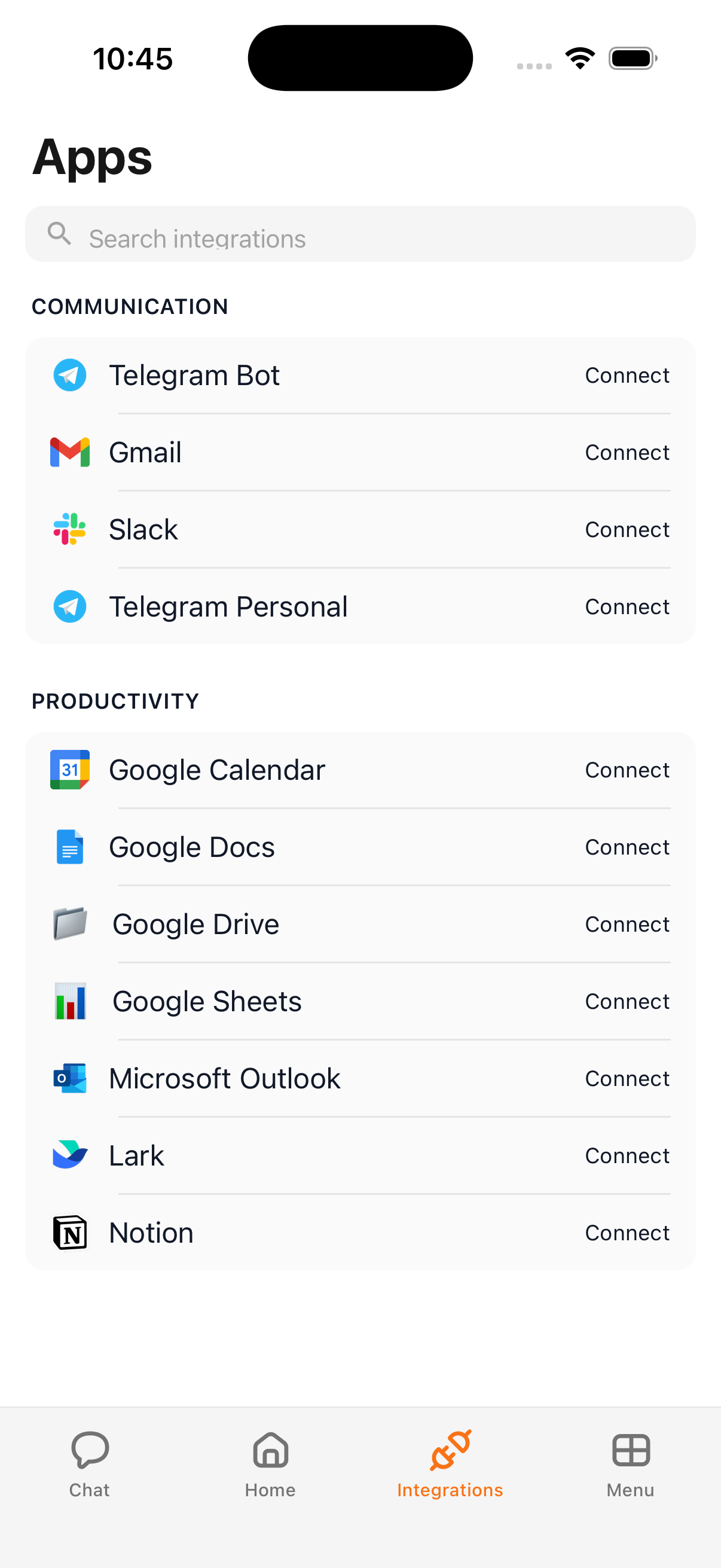
Every integration in Cloa has its own permission level. You decide how much autonomy Cloa has — from completely disabled to fully automatic. You can change these settings at any time.
The Three Permission Levels
| Level | What Happens | Best For |
|---|---|---|
| Off | Integration is disabled. Cloa cannot access this service. | Apps you don't want Cloa to touch |
| Confirm | Cloa prepares an action and shows you a preview. You approve or reject before anything happens. | Apps where you want oversight (email, messaging) |
| Full Auto | Cloa acts automatically without asking. | Apps where speed matters (calendar, notes) |
How Confirm Mode Works
When an integration is set to Confirm, Cloa shows you a preview card before taking action. For example:
- "Send this email to Sarah?" → You tap Approve or Reject
- "Create a meeting for Thursday at 2pm?" → You review details, then confirm
Nothing happens until you say so. This gives you the convenience of automation with the safety of review.
Changing Permission Levels
- Open the Cloa app
- Tap Menu → Integrations
- Tap the integration you want to adjust
- Select your preferred permission level
You can change permissions at any time. Changes take effect immediately.
How Connections Work (OAuth)
Cloa uses OAuth for all integrations — the same "Sign in with Google" flow you've seen on other apps. This means:
- Cloa never sees or stores your passwords
- You sign in directly with the service (Google, Microsoft, etc.)
- You can revoke access from the service's own settings at any time
- Disconnecting in Cloa immediately removes access
Disconnecting an Integration
To disconnect:
- Tap Menu → Integrations
- Tap the integration
- Tap Disconnect
Cloa immediately loses access to that service. Your data on the service remains untouched.
What's Next
- Set up your first integration in Connect Your Apps
- Learn about data storage in Privacy and Your Data
- Having connection issues? Check Integration Issues