
Integrations
Slack
What Cloa Can Do with Slack
| Action | Description |
|---|---|
| Send messages | Post messages to channels or direct messages |
| Read channels | See recent messages in your channels |
| Respond | Reply to messages on your behalf |
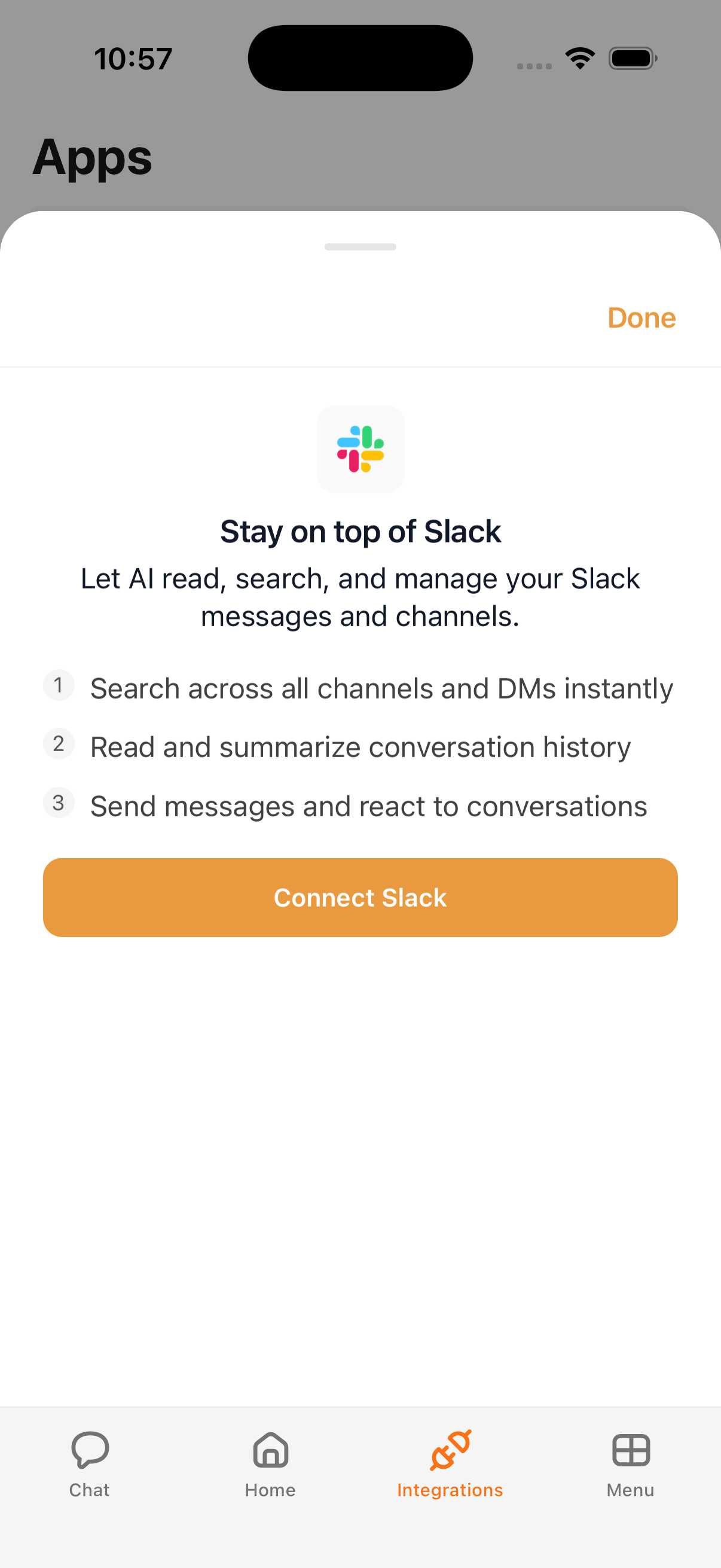
How to Connect
- Open the Cloa app
- Tap Menu → Integrations → Slack
- Tap Connect, then sign in with your Slack workspace
- Grant the requested permissions
Example Prompts
Once connected, try:
"Send a message to the #general channel: Team meeting moved to 3pm"
"What's the latest in the #project channel?"
"Post my weekly update to Slack"
Tips
- Set Slack to Confirm mode to review messages before they're sent
- Combine with Automations for automated team updates — "Every Monday, post a calendar summary to #team"
- Cloa reads channel context to give you relevant summaries
Troubleshooting
If Slack isn't connecting, check that your workspace admin allows third-party integrations. See Integration Issues for more help.
What's Next
- Control message permissions in Understanding Permissions
- Add email with Outlook or Gmail